Download LightXtreme VPN
 30-Day Money-Back Guarantee
LightXtreme VPN for macOS
macOS 12 or newer works on any Mac model.
Over 2,000 servers span more than 70 countries, making it a strong performer.
Regional gates fall away whenever you want, opening any site or platform.
No data cap and no throttling keep the connection quick and steady.
A virtual IP covers your real address, keeping you anonymous online.
Strong encryption keeps your privacy protected online.
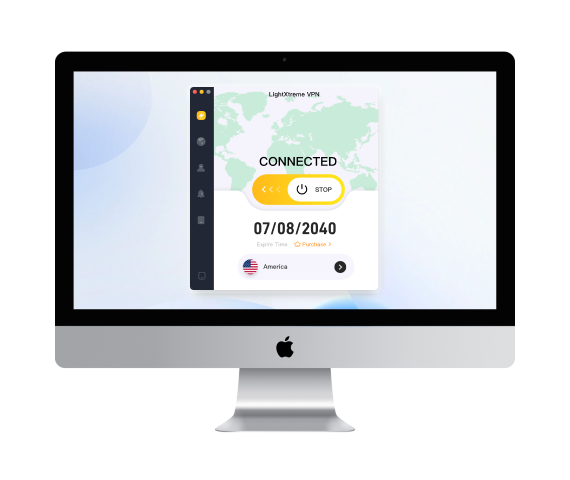


macOS setup in three steps
Download and add
Tap Free Download and the LightXtreme VPN client downloads and installs itself.

Subscribe and sign up
Pick a plan, subscribe, and receive a random numeric account with a password to set.
Log in and connect
Launch LightXtreme VPN, sign in, pick a server and tap connect to start browsing.
Common macOS questions

Choose a provider like LightXtreme VPN, select a plan, download from the official site and follow the setup.

Shadowsocks, Vless and WireGuard, backed by AES-256-GCM, protect traffic in transit.
If macOS flags an unverified developer, go to Apple > System Settings > Privacy & Security and allow the app.
LightXtreme VPN for iOS
You only need iOS 15 or later.
Whether you carry an iPhone or iPad, it works on both.
More than 2,000 servers are located in over 70 countries.
Regional blocks fall away, opening information from around the world.
Connections are fast, steady and encrypted, with no bandwidth cap.
A virtual IP hides your address while encrypted traffic protects privacy and security.
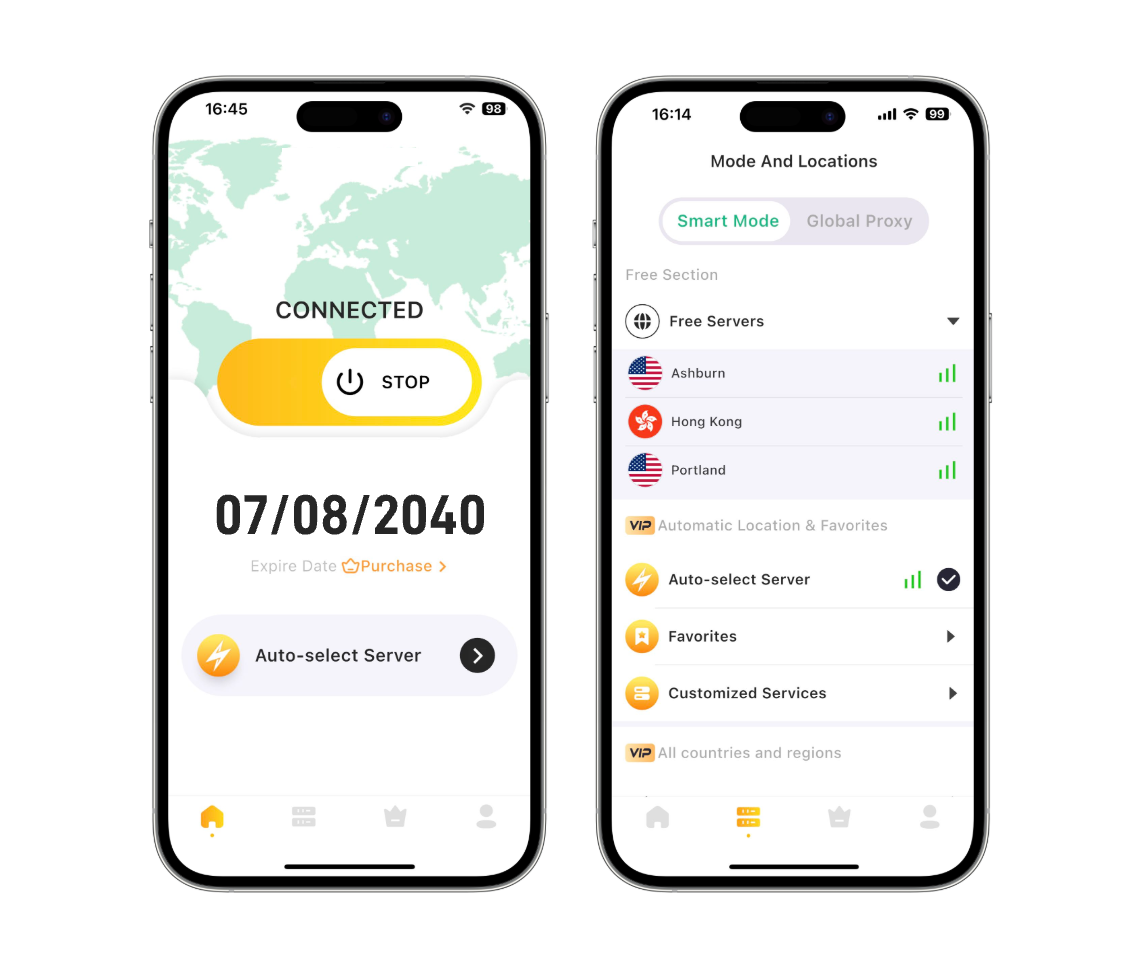
iOS setup in three steps
Download and add
Press Free Download, or find LightXtreme VPN in the App Store and install it.
Subscribe and sign up
Installing the app provides a free trial account; a subscription comes afterwards.
Log in and connect
Launch LightXtreme VPN, sign in and tap Start, or choose another server.
Common iOS questions
Local restrictions can keep LightXtreme VPN out of some App Stores.
A VPN hides your IP and encrypts traffic, which is how it keeps your browsing private.
Try LightXtreme VPN for free; if it fits, a paid plan opens all servers and unlimited bandwidth.
LightXtreme VPN for Windows
It supports Windows 10 and Windows 11.
More than 70 countries host over 2,000 servers.
Regional barriers are gone and worldwide content opens up.
Connections are quick and reliable, with no bandwidth restriction.
YouTube, TikTok, Instagram, Netflix and other platforms are all reachable.
Your real address is hidden and data encrypted, keeping privacy safe.
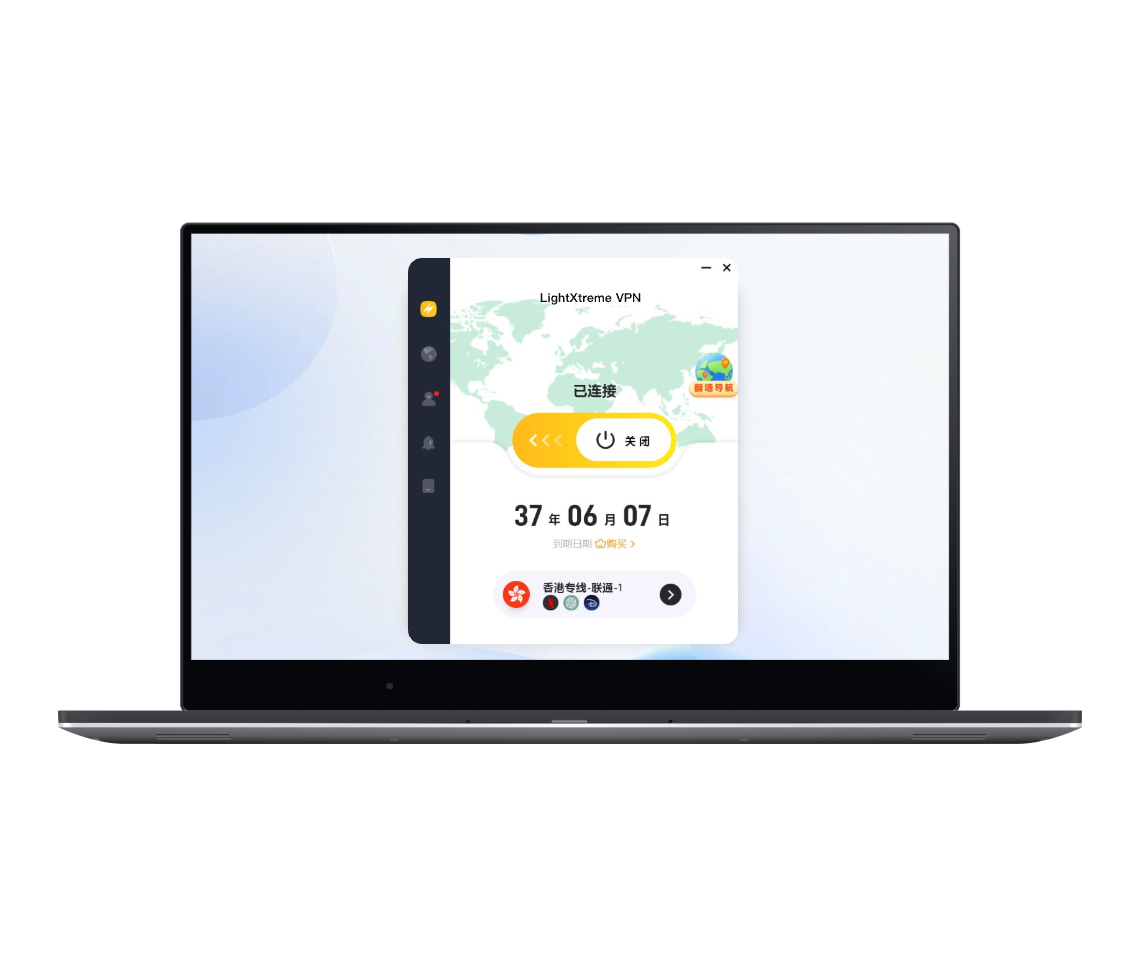
Windows setup in three steps
Download and add
Tap Free Download to get the LightXtreme VPN client onto your computer.
Subscribe and sign up
Pick a plan, subscribe, get a random numeric account and set your password.
Log in and connect
Launch LightXtreme VPN, sign in, pick a server and tap connect to browse.
Common Windows questions
Open the official LightXtreme VPN site in your browser and tap Free Download to fetch the client.
Make sure your network is fast and stable before continuing.
Check the numeric account and password again, and confirm the subscription is still active.
Yes, one LightXtreme VPN account permits 3 devices online at the same time.
LightXtreme VPN for Android
Android 5.0 and all later versions are supported.
Over 2,000 servers are placed around the world, with no bandwidth limit.
Geo blocks stop getting in the way of any site or platform.
All connections are fast, steady and secure.
Strong encryption protects your data, privacy and security.
A virtual IP hides your address, so you stay anonymous.
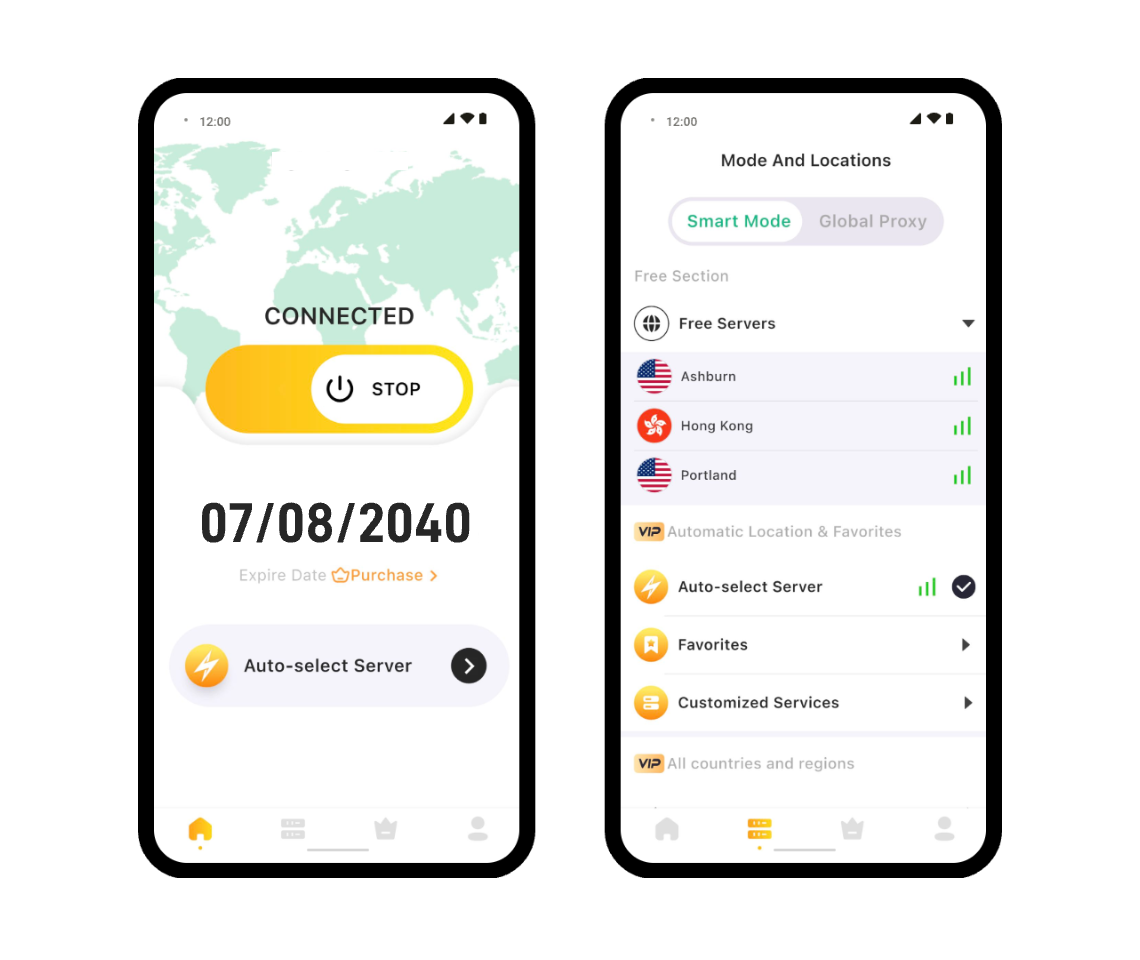
Android setup in three steps
Download and add
Tap Free Download to get the client onto your Android device.
Subscribe and sign up
The Android app install gives you a free trial account, with plans available later.
Log in and connect
Launch LightXtreme VPN, log in and choose the server you want.
Common Android questions
Choose a dependable provider like LightXtreme VPN, install from Google Play and launch it.
It is a paid service, but you can try it: install gives you a free account.
Open the app and press Stop to end the current session.
Switch servers, make sure the underlying network is stable, update the app and try again.
LightXtreme VPN for Apple TV
tvOS 17 and newer versions are supported.
Around 2,000 servers are placed in more than 70 countries.
Netflix, Hulu, Disney+ and more are available for movies and shows.
Geo blocks are lifted and video content from around the world opens up.
Fast and stable with no bandwidth cap, connected in one tap.
AES-256-GCM encryption protects your data, privacy and security.
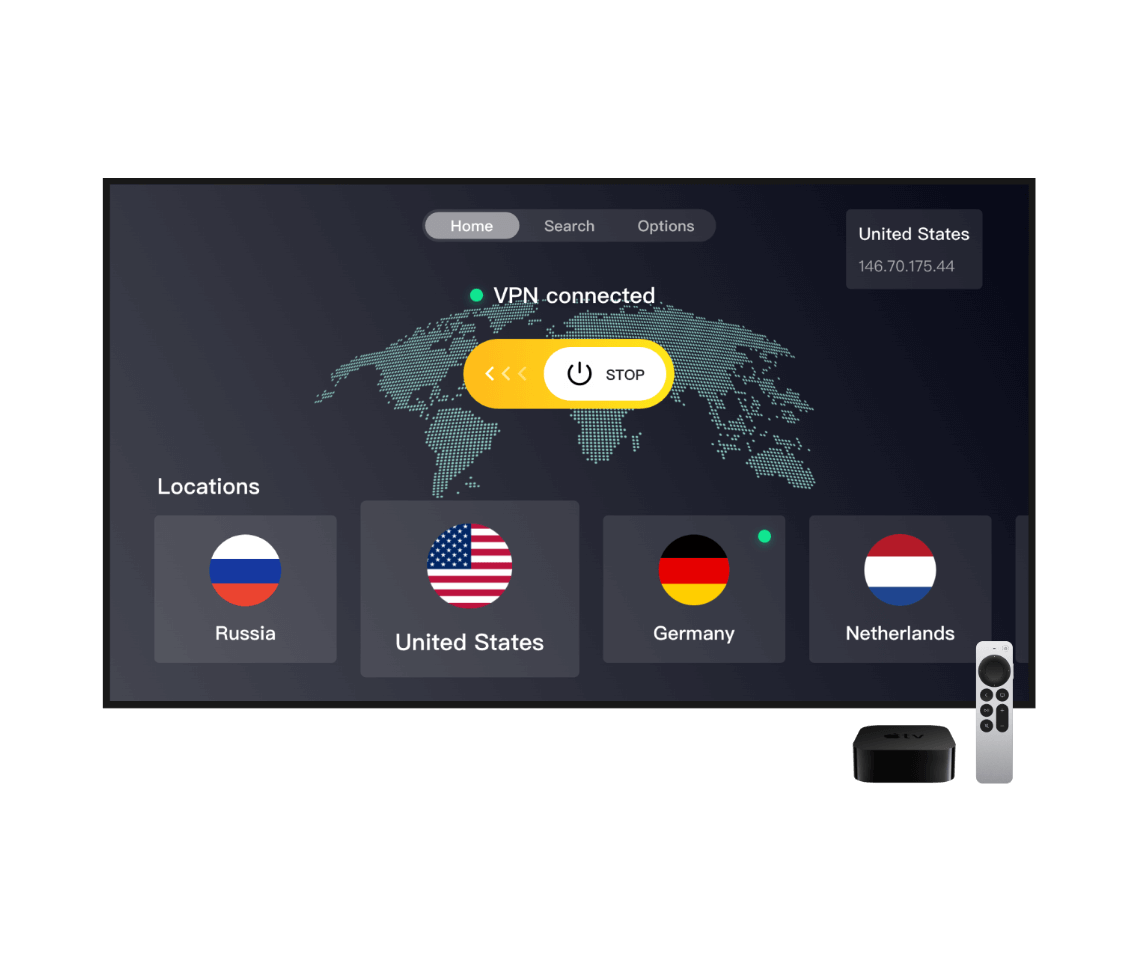
Apple TV setup in three steps
Download and add
Open the App Store on Apple TV, search LightXtreme VPN and install it.
Subscribe and sign up
Pick a plan, subscribe, receive a numeric account and sign in with its password.
Log in and connect
Select a country and server, connect, and start watching your films and shows.
Common Apple TV questions
Search LightXtreme VPN in the Apple TV App Store and install it.
Sign in with the account name and password, or scan the QR code shown by the LightXtreme VPN app.
Apple TV devices with tvOS 17 or newer can install the native VPN from the App Store.
LightXtreme VPN for Android TV
Android 5.0 or newer is required.
Netflix, Hulu, Disney+ and similar platforms are available for movies and shows.
Content from more than 70 countries is now accessible.
More than 2,000 servers globally, fast, stable and uncapped.
Strong encryption protects your data, privacy and security.
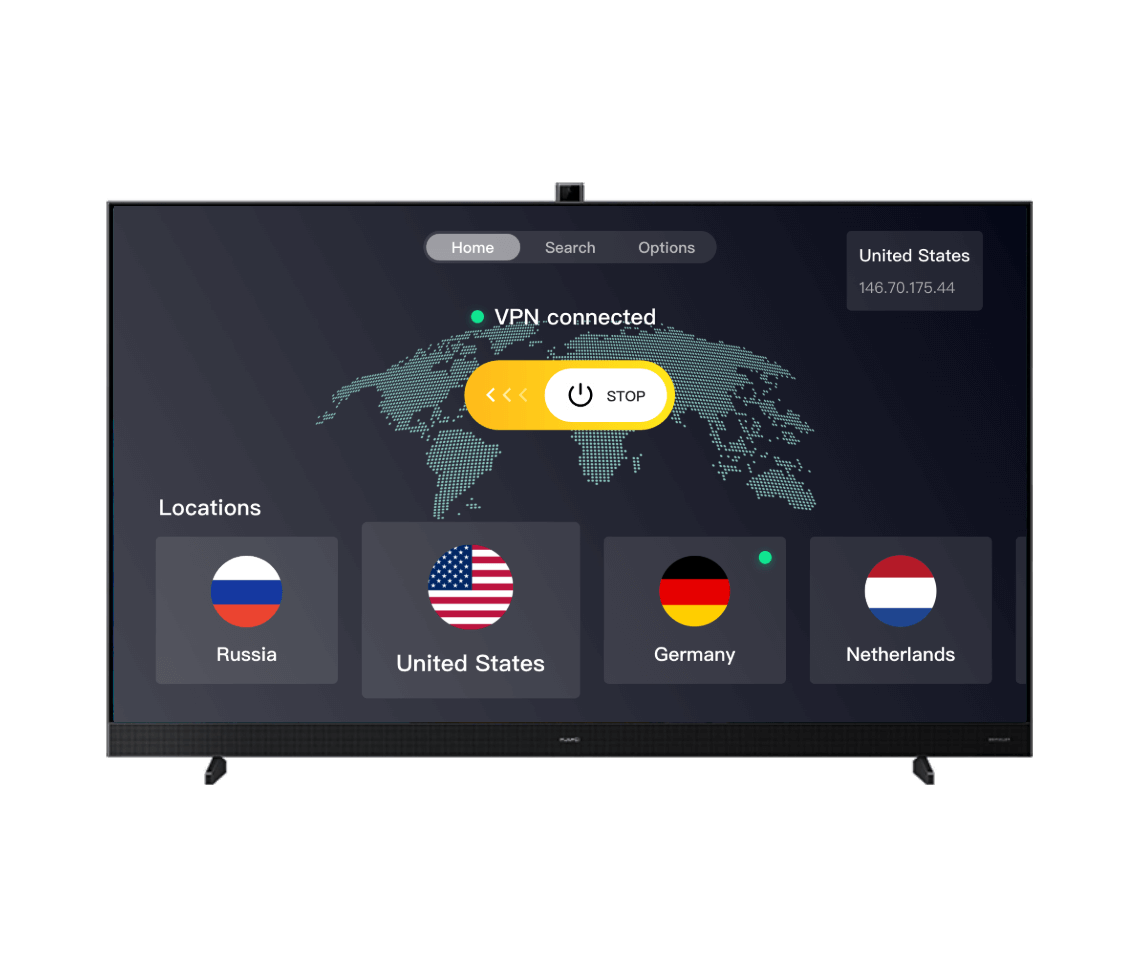
Android setup in three steps TV
Download and add
Open Google Play on Android TV, search LightXtreme VPN and install it.
Subscribe and sign up
Pick a plan, pay, and a numeric account is issued for signing in.
Log in and connect
Select a country and server, connect, and watch your content on Android TV.
Common Android TV questions
Find LightXtreme VPN in Android TV's Google Play, or download the APK directly.
It runs fast, safely and steadily on Android TV, with versions for Apple TV, Windows and more.
Sign in with the account name and password, or scan the QR code shown by the LightXtreme VPN app.
Yes, many providers offer Android TV apps available straight from Google Play.
Good providers maintain fast, stream-optimised servers, so speed loss is minimal.
LightXtreme VPN for Linux
Debian 11 and Ubuntu 20.04 LTS or later are supported, on AMD64 and ARM64.
More than 2,000 servers are spread across over 70 countries.
Regional blocks are lifted and global content is reachable.
Connections come up quickly and stay reliable, with no bandwidth cap.
YouTube, TikTok, Instagram, Netflix and all other platforms are open.
A virtual IP hides your real address while data stays encrypted, keeping privacy safe.
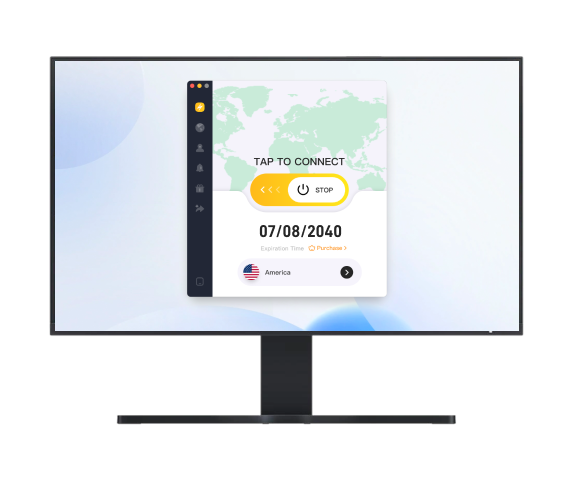
Linux setup in three steps
Download and add
Tap Free Download and the client downloads and installs on Linux.
Subscribe and sign up
Subscribe to a plan and register a numeric LightXtreme VPN account.
Log in and connect
Launch LightXtreme VPN, sign in, tap Start to connect or choose Mode for another node.
Common Linux questions
While other Linux VPNs rely on command-line setup, login and connection, this one does everything through the interface.
There are many Linux VPN tools, and LightXtreme VPN is one of the best in day-to-day use.
Get the LightXtreme VPN Chrome extension
Fast, safe browsing without adverts.
Installing is simple and the app is ready at once.
Advanced encryption guards your privacy and data.
More than 2,000 servers cross regional limits and open any site or platform.
The link stays healthy, keeping the online session smooth.
A virtual IP masks your address while privacy and network safety stay protected.
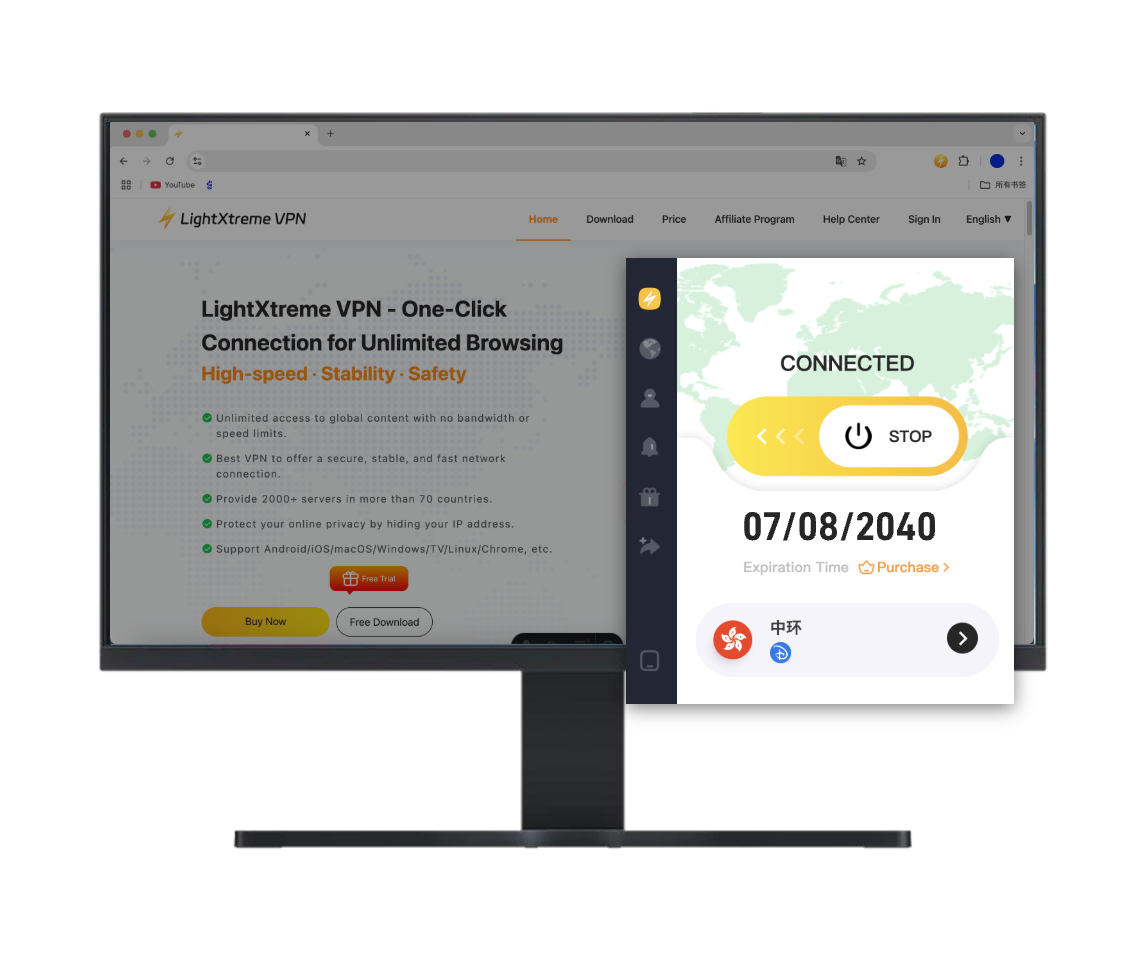
Chrome setup in three steps
Install the Chrome extension
Tap Free Download, or look up LightXtreme VPN in the Chrome Web Store and add it.
Subscribe and sign up
Create a LightXtreme VPN account and choose the plan that fits.
Log in and connect
Open the Chrome extension, sign in, pick a country and server, then click connect.
Common Chrome questions
The extension requires Chrome 124 or newer.
Get the LightXtreme VPN Edge extension
Edge browsing is fast, secure and ad-free.
More than 2,000 servers globally can open whichever site you want.
Switching IPs keeps you anonymous and protects your activity.
Advanced encryption protocols protect your data.
Installing is straightforward and it works right away.
Fast, steady connections make browsing feel best.
Edge setup in three steps
Install the Edge extension
Click Free Download and confirm the install.
Subscribe and sign up
Create your account first, then choose a plan that matches how you browse.
Log in and connect
Open the Edge extension, sign in, choose a server and click Connect.
Common Edge questions
The add-on needs Edge 124 or newer.
Get the LightXtreme VPN Firefox extension
Firefox browsing is fast, safe and ad-free.
The install is simple and the app works immediately.
With 2,000+ servers across the globe, every site or platform is reachable.
A virtual IP keeps your address hidden, leaving you anonymous and your browsing private.
Advanced encryption gives your privacy strong protection.
Steady, high-speed links give the best browsing.
Firefox setup in three steps
Install the Firefox extension
Look up LightXtreme VPN in the Firefox Add-ons store and click Add, or press Free Download.
Subscribe and sign up
Create your account first, then choose a plan that fits your usage.
Log in and connect
Open the Firefox extension, sign in, pick a country and server, then click connect.
Common Firefox questions
The add-on needs Firefox 126 or newer.